
Core concepts · controls
Files you can pick up.
Everything in MEs is a patch — a file given a body in space. You keep your patches in MIND, place them in a world, and move them with your hands.
A complete control reference — the basic idea, every control, then Camera Mode. Keys are current as of the latest build.
what everything is made of
Patches, MIND & worlds
A Patch is any file data given a form in MEs' 3D space — an image, a 3D model, audio, text, or a web page. It's the fundamental unit: whatever you bring in becomes one.
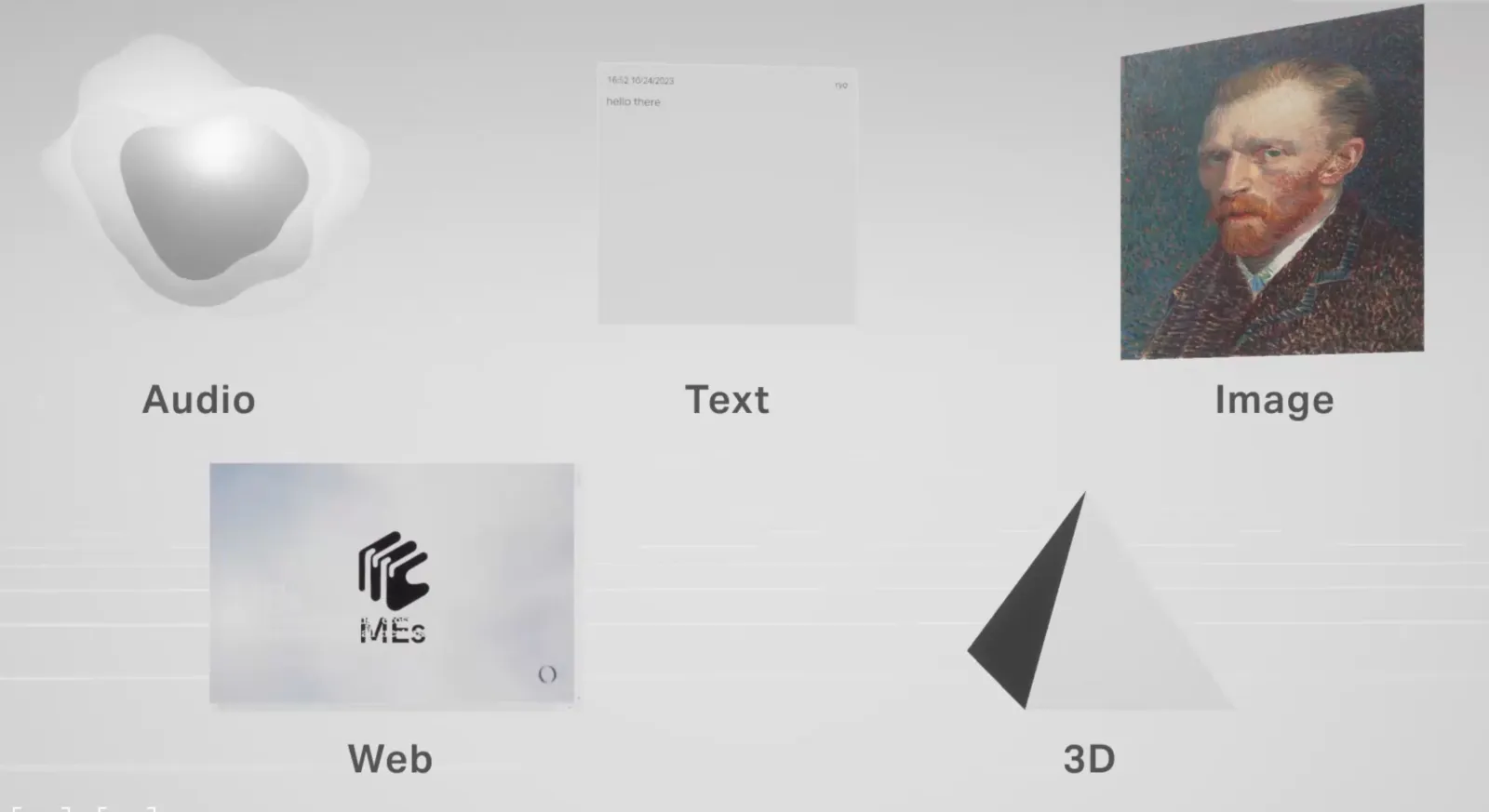
| Type | Formats |
|---|---|
| Images | jpg · jpeg · png · webp · gif |
| 3D models | gltf · fbx · glb · vrm |
| Audio | mp3 · wav · ogg · flac |
| Web | any URL |
MIND — where your files live
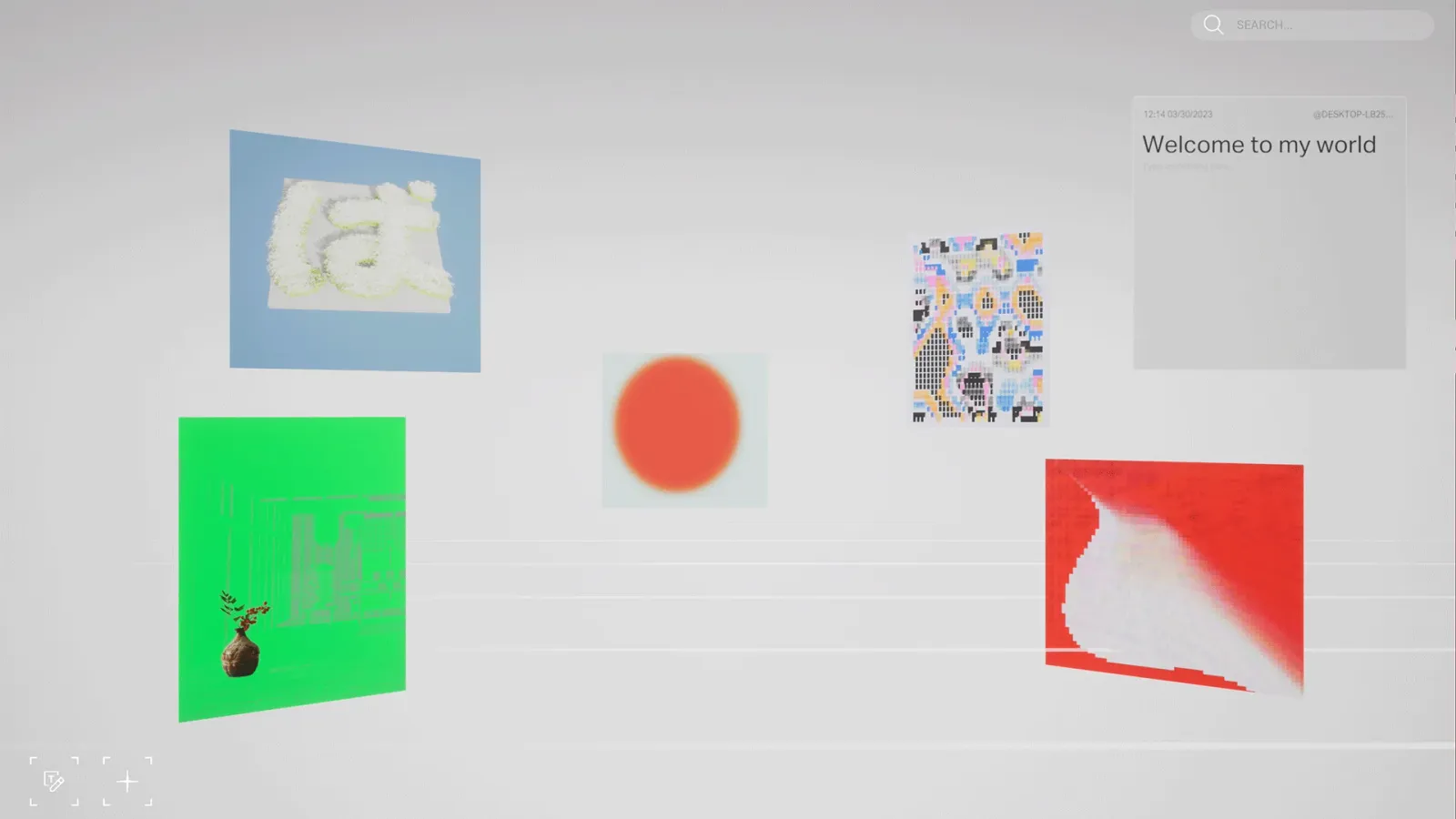
MIND is the 3D file system that holds everything you've brought into MEs. To place a patch in a world, you first import the file into MIND, then cast it out.
WORLD — the place you make
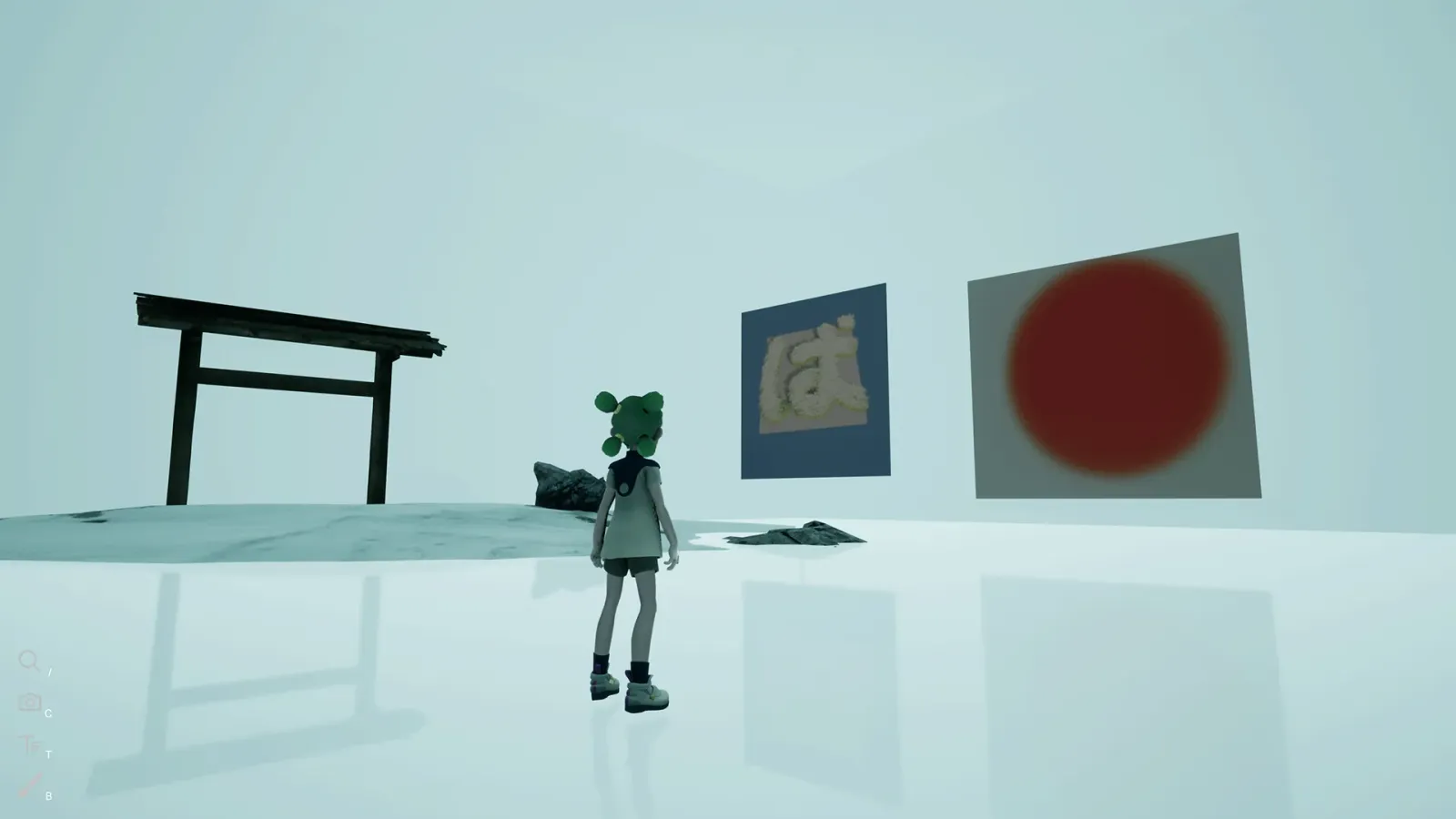
A world is a virtual space you build from a template (a Seed World) and fill with patches. Worlds come in two kinds:
- Multiplayer — uploaded to the cloud; share a code and others experience it with you.
- Single-player — works offline, but can't be visited by others.
A world's type is set at creation and can't be switched between multiplayer and single-player later.
moving around
Every key, in one place.
Move, grab, paint — all from the keyboard.
| Action | Key / mouse |
|---|---|
| Move avatar | W A S D |
| Jump | Space |
| Go to MIND | Z |
| Menu | Q |
| Camera Mode | / |
| Close game | Esc |
| Action | Key / mouse |
|---|---|
| Move patch | R |
| Scale | Mouse wheel · or [ ] |
| Push / pull | F V |
| Rotate | Hold right-click · or Shift + move mouse |
| Switch axis | Hold right-click + 1 2 3 |
| Reset rotation | Hold right-click + R |
| Cancel move | Esc |
| Inspect patch | E |
| Delete patch | Backspace |
| Action | Key / mouse |
|---|---|
| Move forward / back | Mouse wheel · or W S |
| Pan camera | Shift + A D |
| Select patch | Left-click |
| Move patch | Hold left-click + move mouse |
| Scale patch | [ ] |
| Inspect patch | E |
| Delete patch | Backspace |
bringing files in
Direct Cast — drop a file straight in.
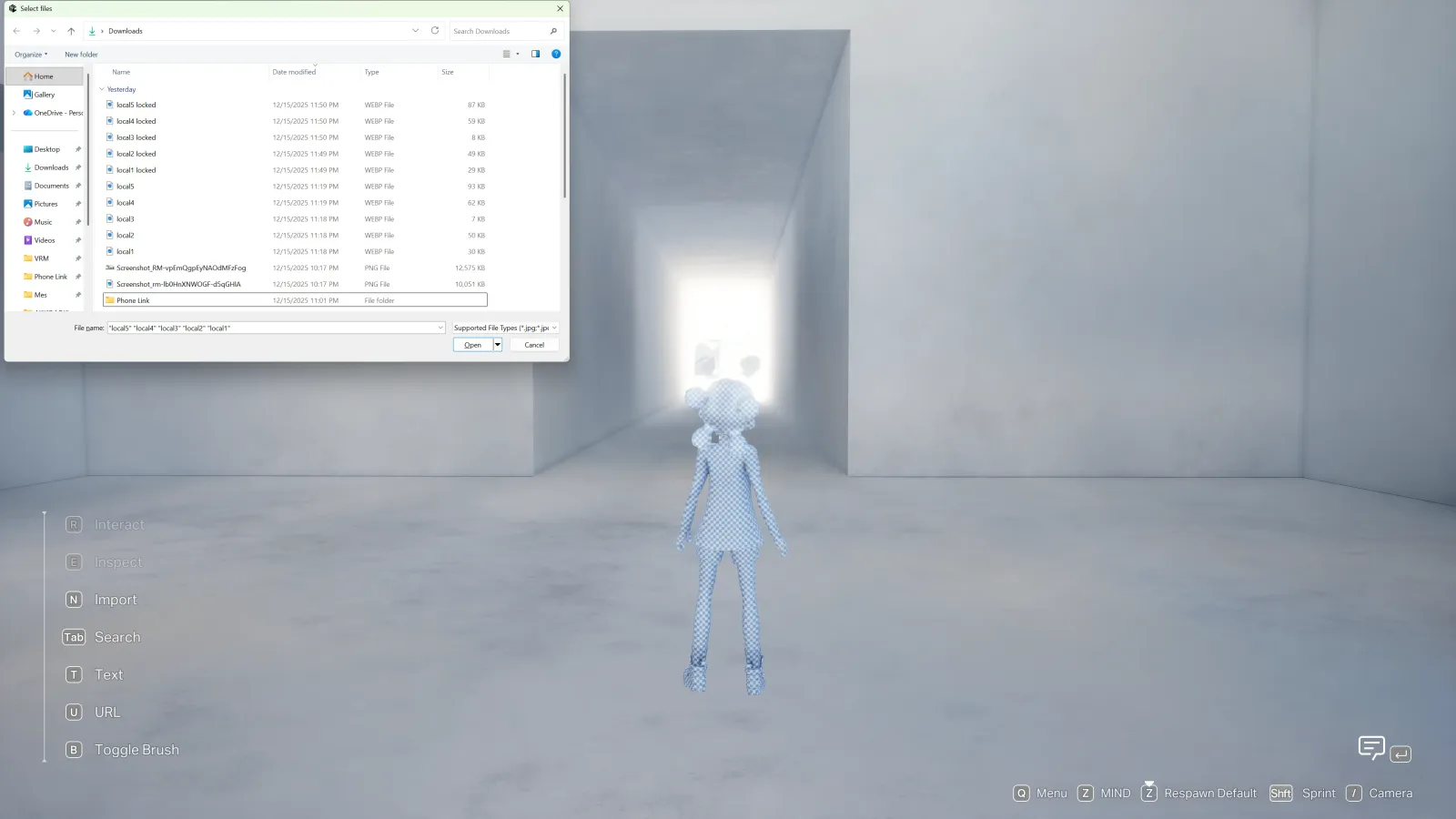
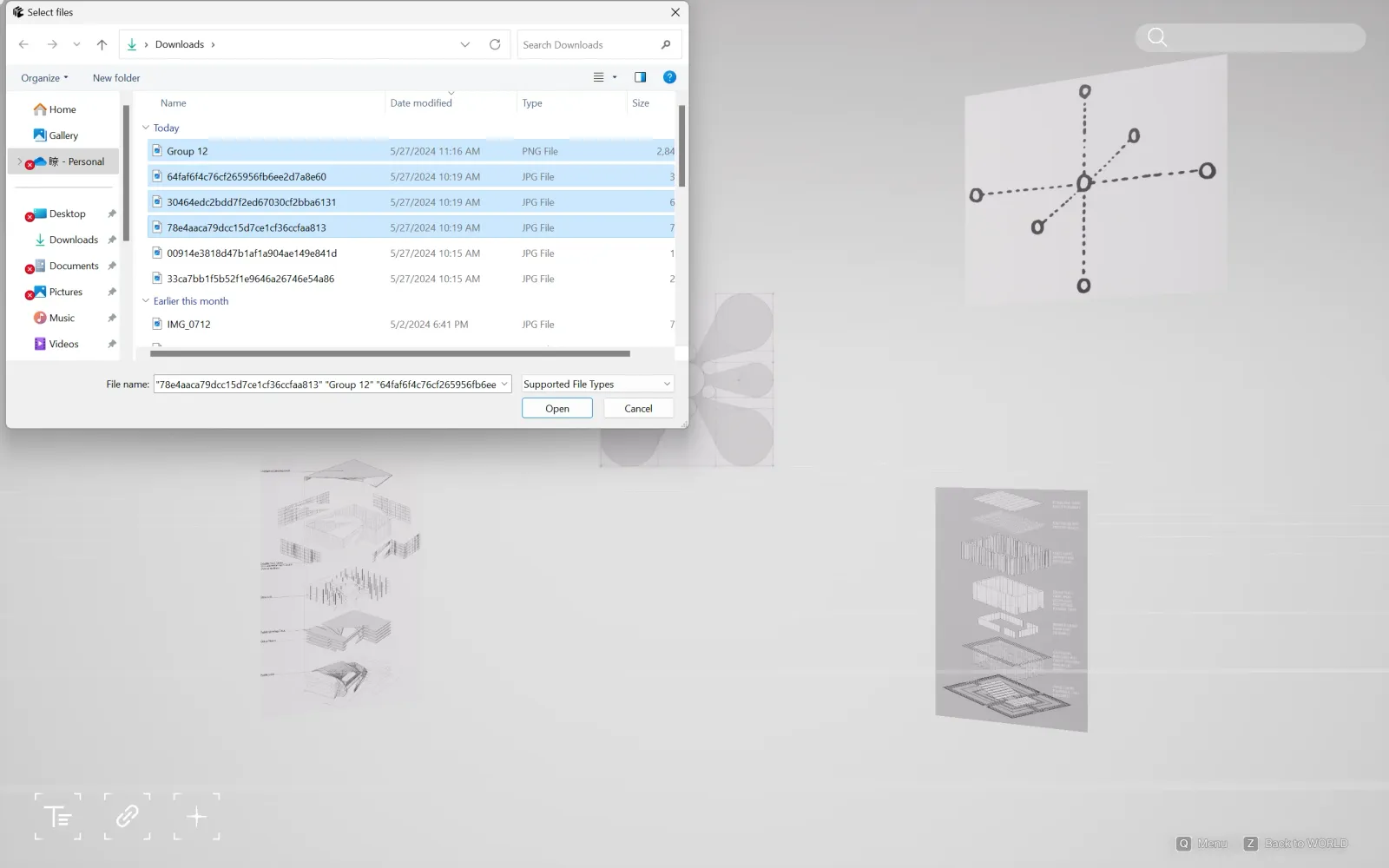
Direct Cast imports a file as a patch without digging through menus. Hold Shift while selecting to bring in several at once.
- 1
In a world, press N
The file picker opens. Choose a file and confirm — it lands in the current world as a patch.
- 2
In MIND, press N or the + button
Same picker, from your file system. The patch is added to MIND, ready to cast into any world.
Want the full walk-through with media? See the Import a file how-to →
patches you make on the spot
Text & URL patches
Two patches you can create without importing a file at all.
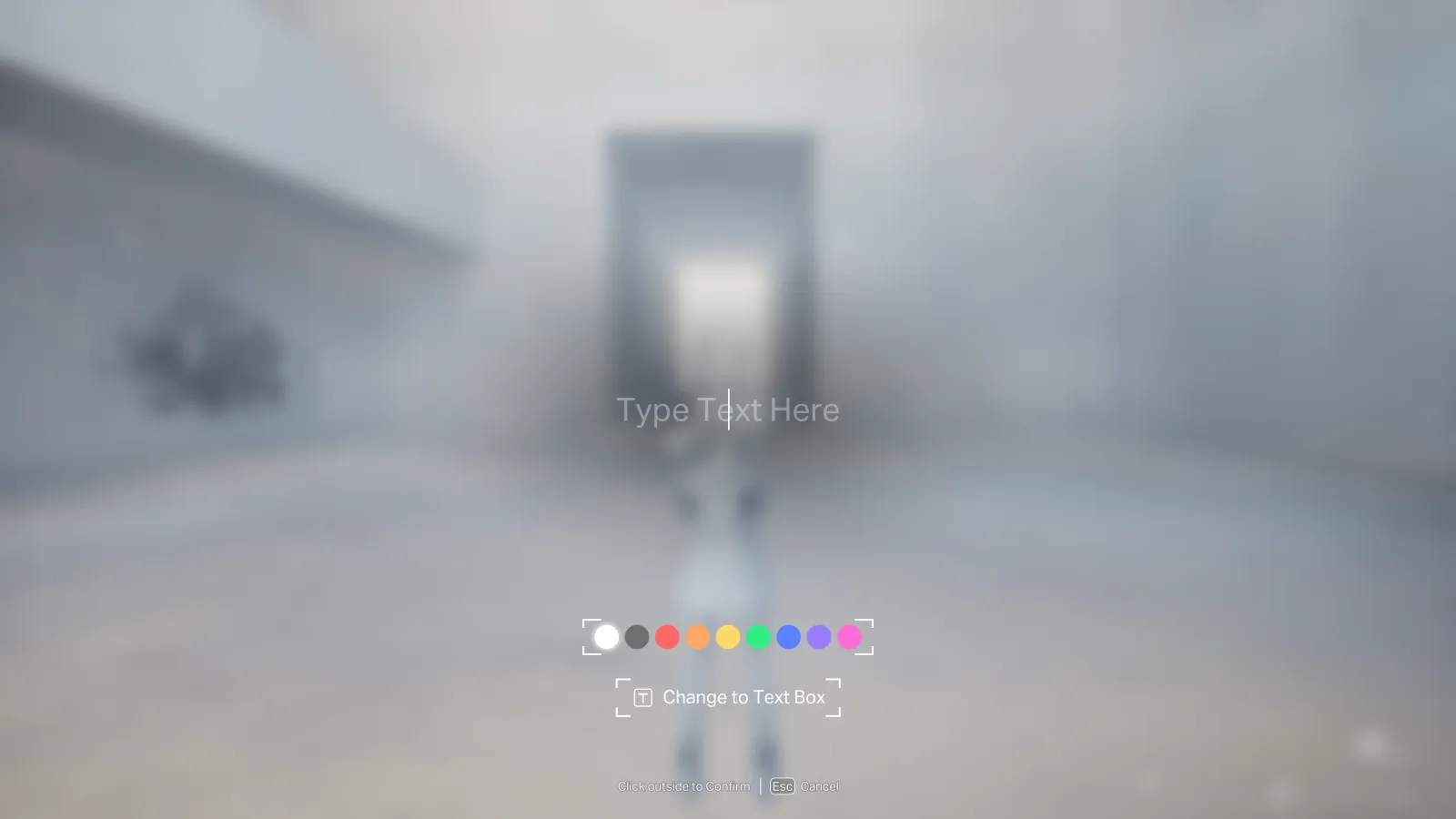
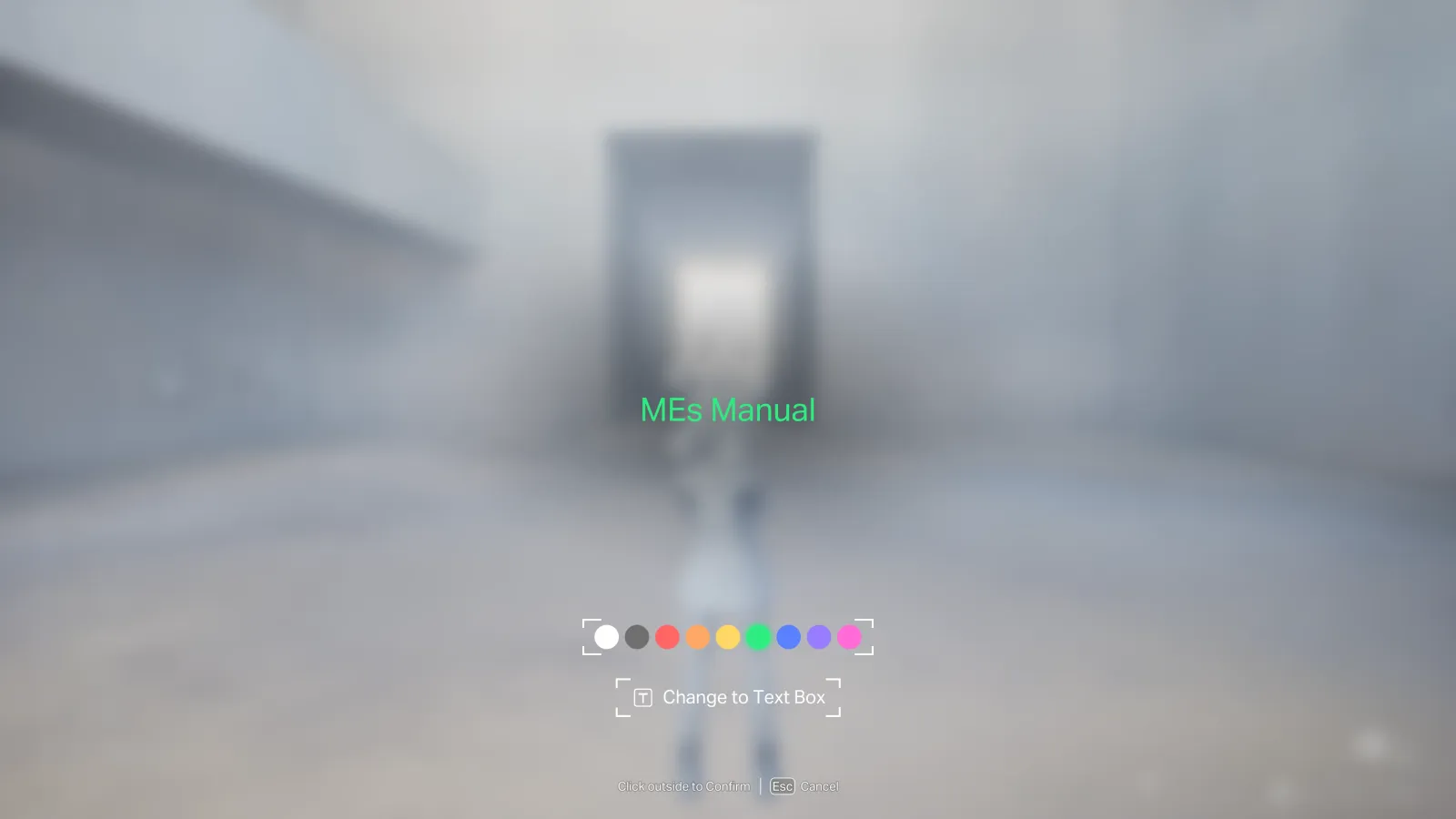
Text patch — T
Displays text in space. Press T to start one; toggle between Simple Text and a Text Box from the bar at the bottom, and set the color in its settings.
URL patch — U
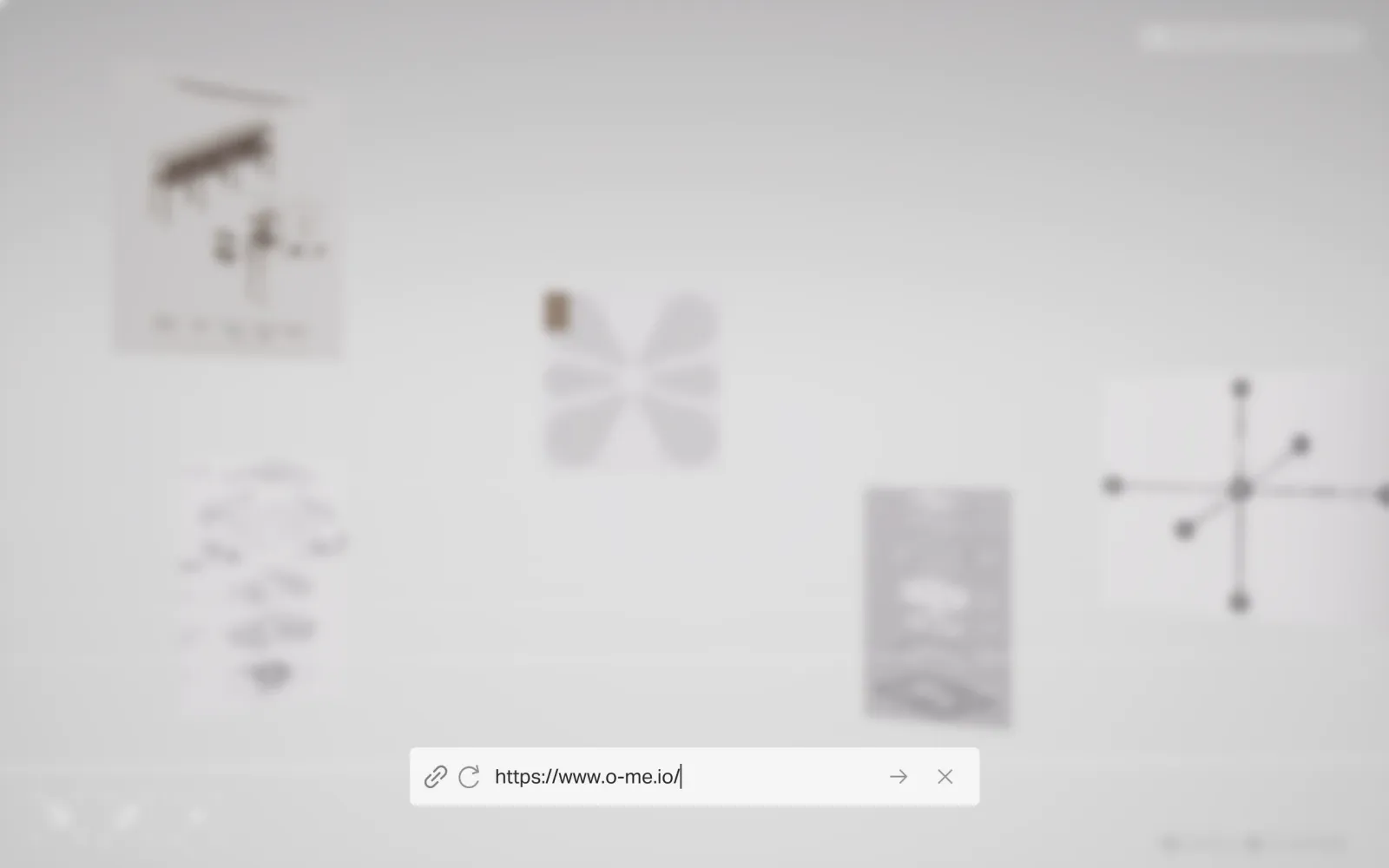
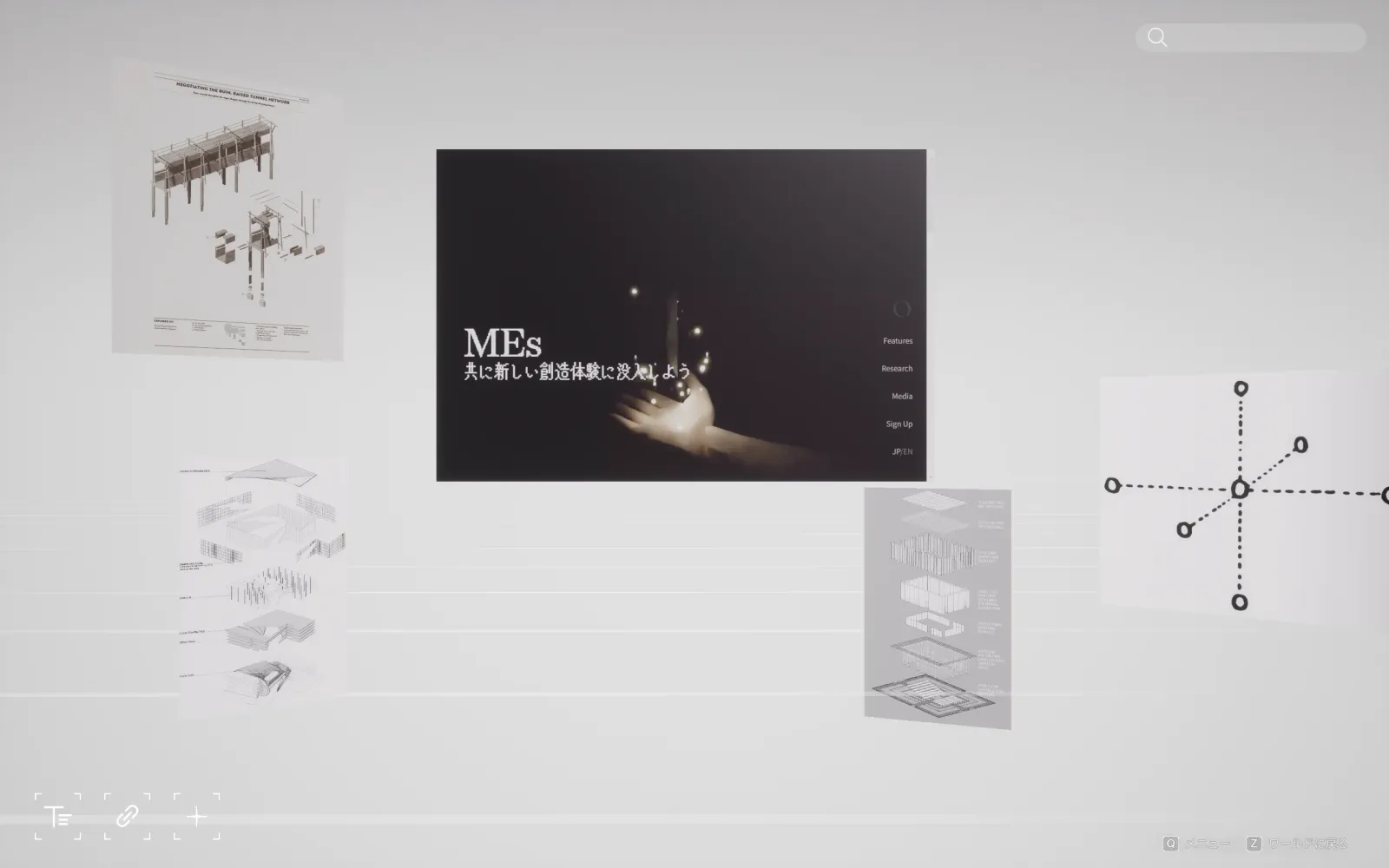
Turn any website into a patch by entering its URL — or type keywords to use it as a search box. Press U in a world (or the link button at the bottom-left), enter an address or query, and hit enter.
place fast, paint freely
Search & Brush
Search — Tab
Cast a patch straight into a world by name, without opening MIND. Press Tab, type the patch's name, and click it to place. Naming your go-to patches well makes this fast.
Brush — B
Brush treats a patch like paint, so you can draw it through a world. Register a patch to a palette first (select it in MIND, press E, click the brush icon). Then press B, pick a slot with 1–5, and hold left-click to paint.
talking
Text chat
Talk to everyone in the world with text. Press Enter to open the input, type, and Enter again to send — every player in the world sees it.
camera mode
Frame the world
Press / to switch from avatar movement to a free camera. Press it again to return to normal movement.
Move the camera
| Action | Key / mouse |
|---|---|
| Forward · left · back · right | W A S D |
| Look around | Mouse |
| Down / up | Q E |
Field of view, roll, exposure
Use the up / down arrows to choose a parameter, then change it with the mouse wheel or left / right arrows.
| Parameter | Range | Effect |
|---|---|---|
| Field of View | 5° – 170° | changes how wide the lens sees |
| Roll | −90° – 90° | tilts the horizon |
| Exposure | −3 – +3 | brightens or darkens the frame |
Capture, record, or stream
- Capture a screenshot — Left mouse button.
- Hide the HUD — H for a clean frame.
For screen recording or livestreaming, compose the shot in MEs and use your usual recording or streaming software.
Blur the background
To create a shallow depth-of-field effect:
- Move farther from the subject.
- Increase Field of View with the mouse wheel or right arrow.
- Move forward or back in small steps until the subject is sharp and the background softens.